
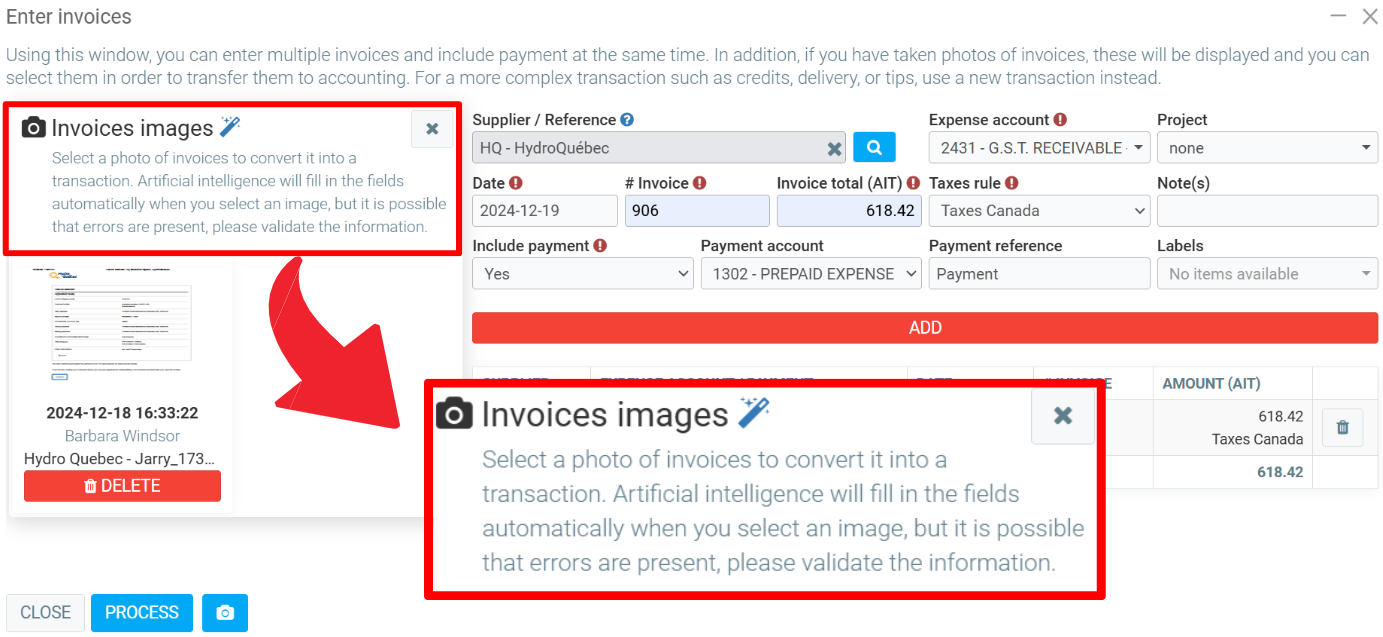
When you select a photo of an invoice, the AI in your GEM-WORK, the blue wand, will automatically extract and complete the transaction fields for you. This feature saves time and simplifies the process of recording transactions.
To insert an invoice, click on the red + and choose the invoice.
It will join the treatment queue. Select the one you want to send to Accounting.
Select the photo of an invoice to convert it into a transaction. Artificial intelligence will fill in the fields automatically when you select an image, but it is possible that errors are present, please validate the information. Then click on Add and on Process.
A confirmation window will appear with the following message “Are you sure you want to add these invoices/disbursements?”. Click on Yes.

Note : You can also add an Invoice images by clicking, from the main menu located on the left, on Suppliers > Invoices images > +Add
Comments
Please sign in to leave a comment.