
To obtain your API key, go to the avatar menu with your name in the top right-hand corner and select Managing your account.
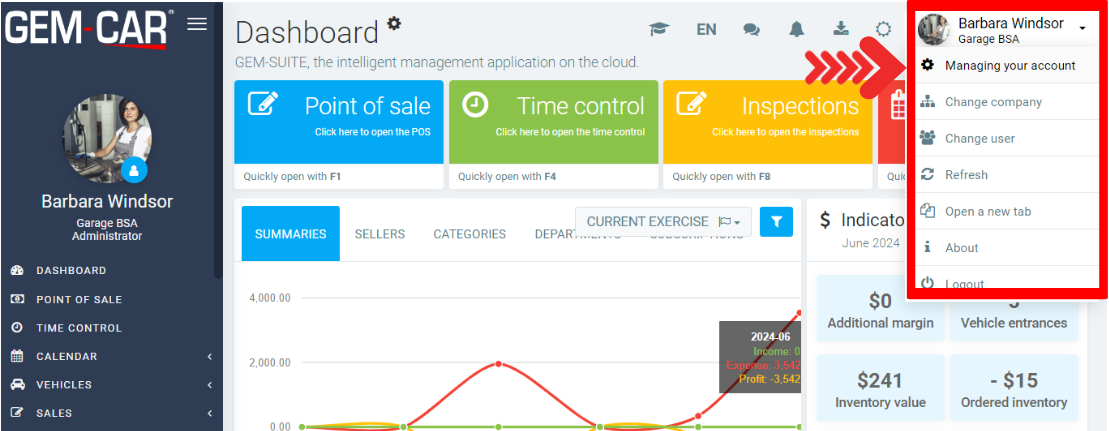
From the Managing Your Account menu, 4 tabs appear:
- Info
- Add-ons
- Invoicing
- Users
Under Users, you will see a table with the following information:
- Code
- Name
- Type of user
- Role
- Last login
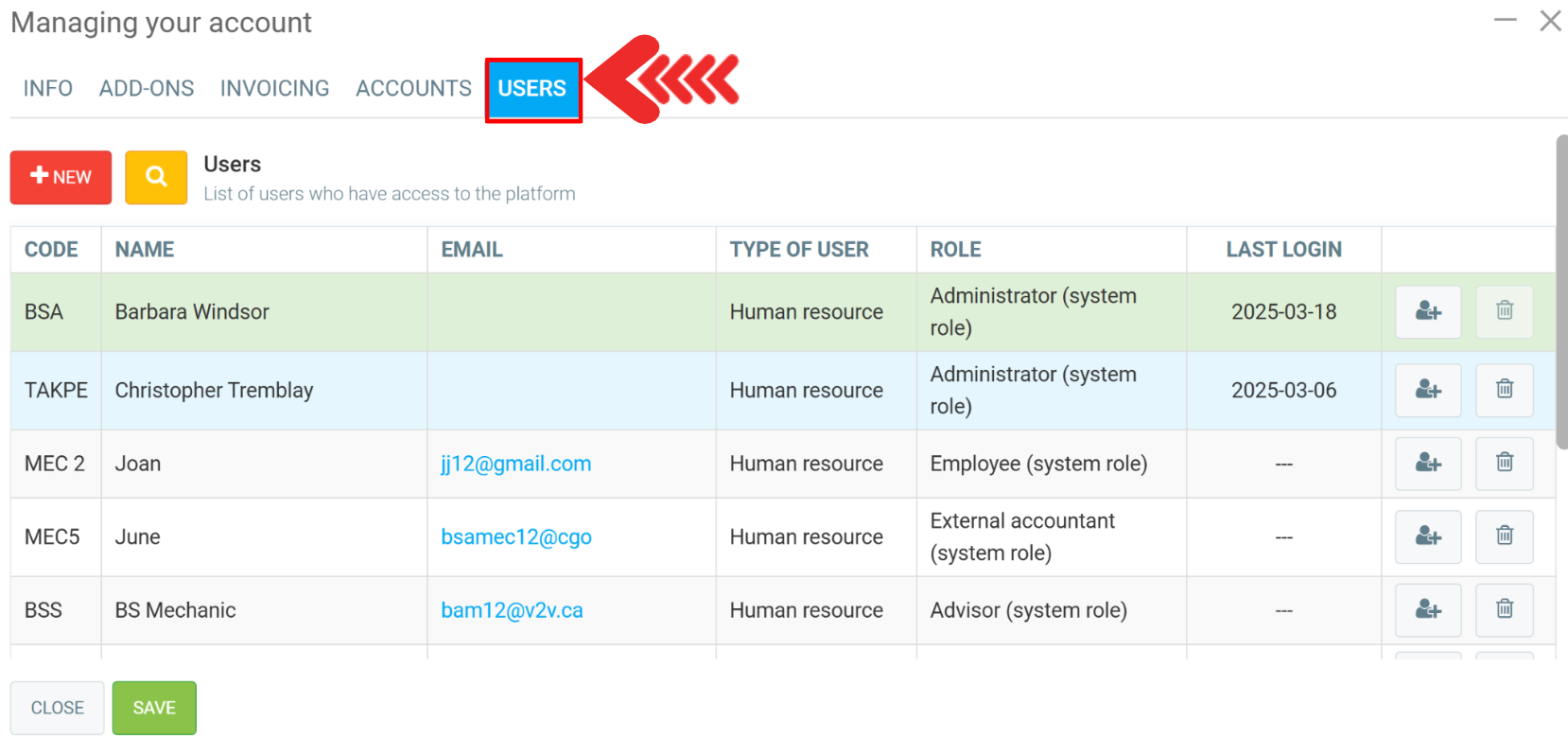
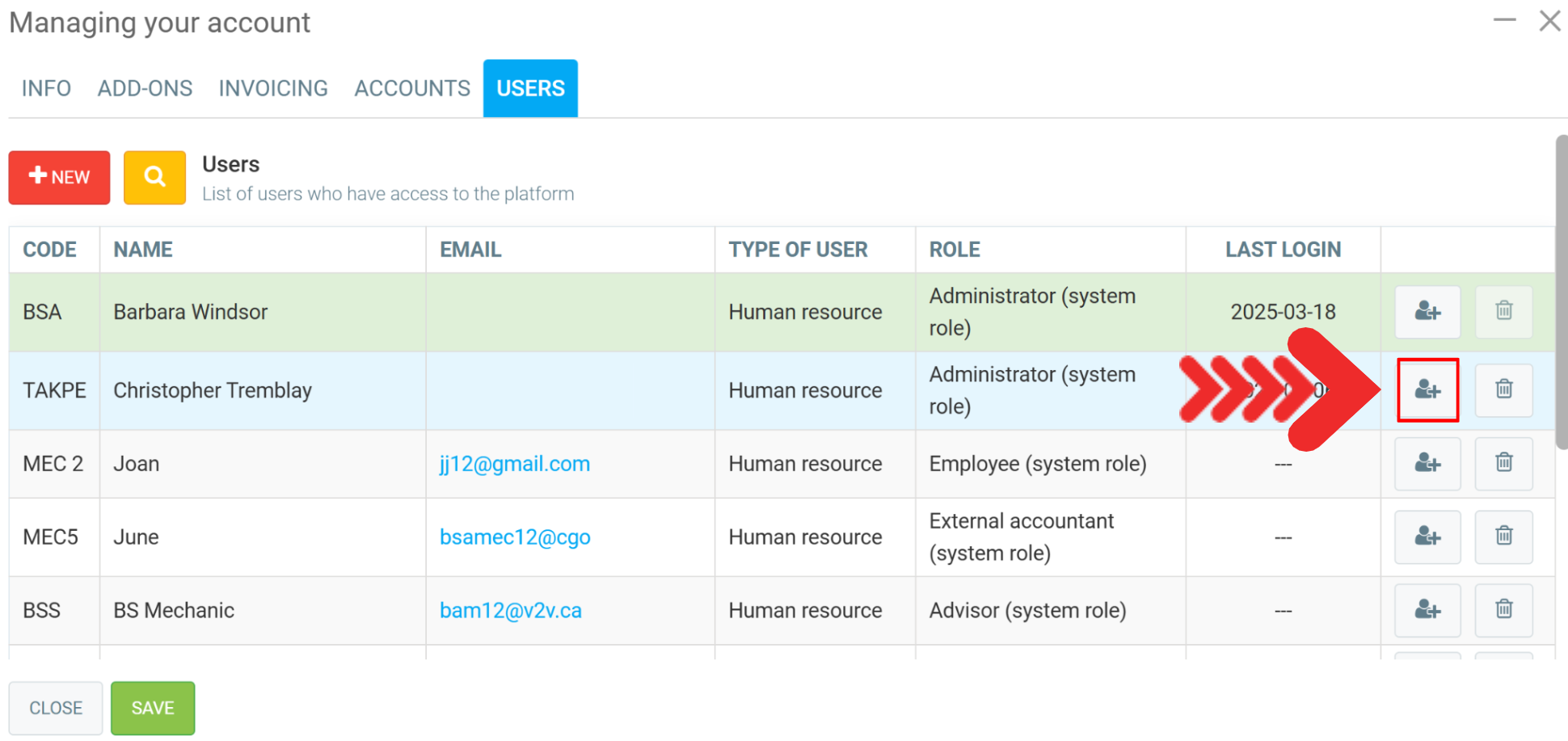
You can give account administrator access to a specific user by clicking on avatar+.
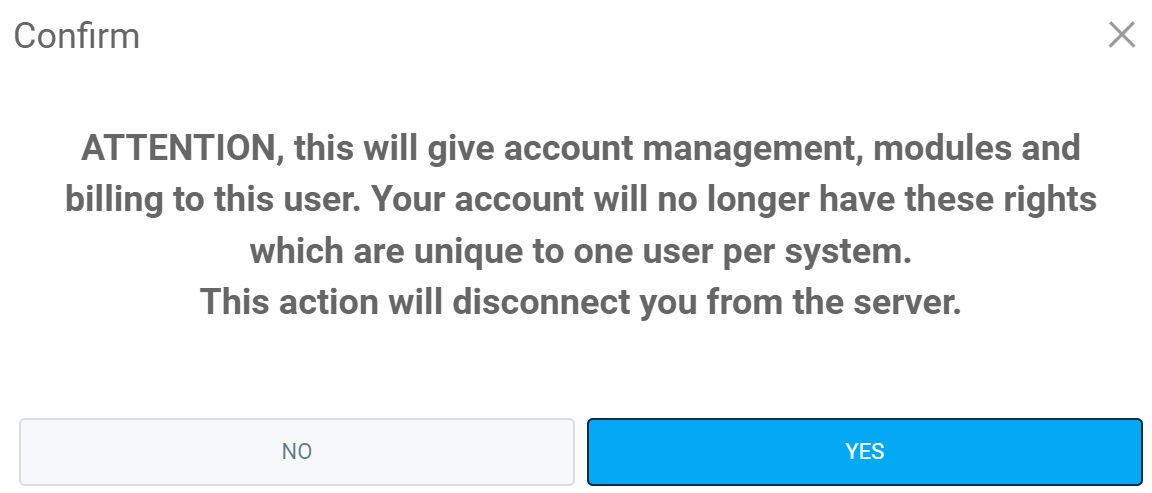
A confirmation window will appear with the following message: “ATTENTION, this will give account management, modules and billing to this user. Your account will no longer have these rights which are unique to one user per system. This action will disconnect you from the server."
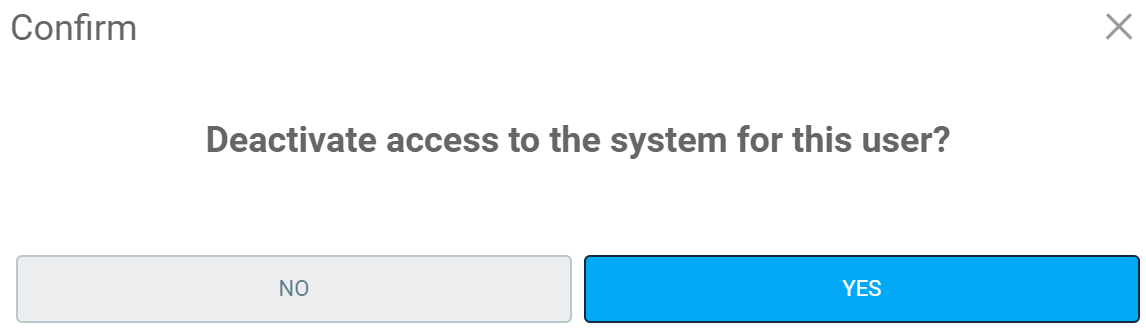
If you click on the trash can to deactivate the user, the following message appears: “Deactivate access to the system for this user?" Click Yes or No, as required.
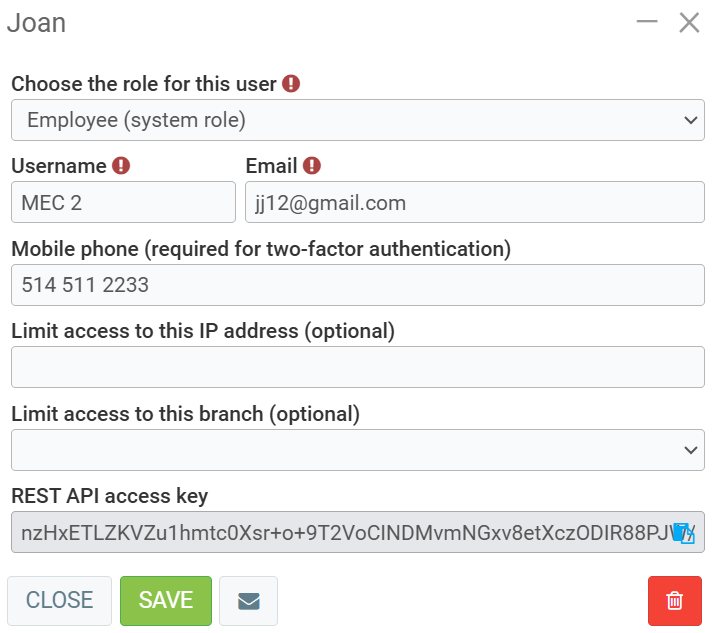
Since we wish to grant access to GEM-CAR to our new mechanic, June, we click on the name. A new window appears, from which you can enter the following information:
- Choose the role for this user
- Username
You can disable access by clicking on the red trash can in the right corner of the page, and you can send a confirmation e-mail to this user by clicking on the envelope next to the Save button. This user's permissions will apply to API calls.
If you're a programmer, here's the address of the documentation for our REST API: https://docs.gem-suite.com
Note: Only the system's super administrator can see the API keys. Please run your tests with a user who has the administrator roles. This way, when you adjust this user's roles and the API stops working for certain actions, you'll know that it's the user who isn't entitled to that particular function.
Once you've entered and checked your data, click Save.
Comments
Please sign in to leave a comment.